
What is Data Masking?
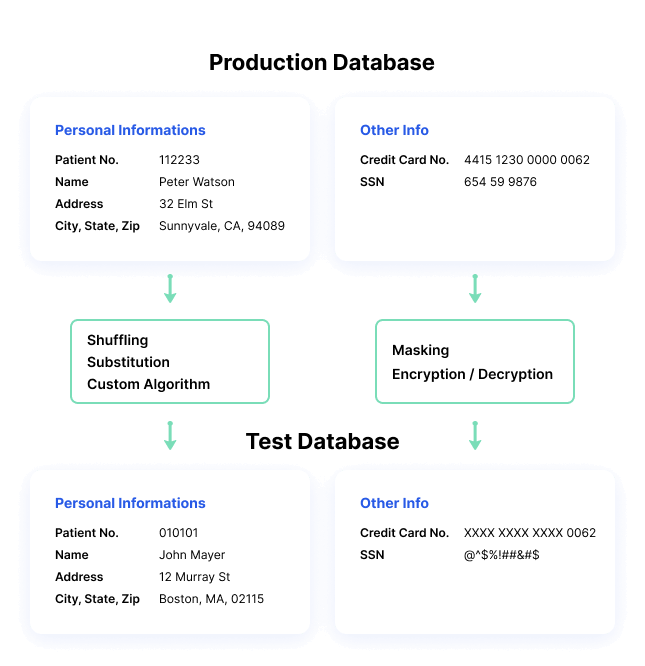
Data masking is a way to create a fake, but a realistic version of your organizational data. The goal is to protect sensitive data, while providing a functional alternative when real data is not needed—for example, in user training, sales demos, or software testing.
Data masking processes change the values of the data while using the same format. The goal is to create a version that cannot be deciphered or reverse engineered. There are several ways to alter the data, including character shuffling, word or character substitution, and encryption.
Blog: The Benefits of Including Static Data Masking in Your Security Arsenal.
Why is Data Masking Important?
Here are several reasons data masking is essential for many organizations:
- Data masking solves several critical threats – data loss, data exfiltration, insider threats or account compromise, and insecure interfaces with third party systems.
- Reduces data risks associated with cloud adoption.
- Makes data useless to an attacker, while maintaining many of its inherent functional properties.
- Allows sharing data with authorized users, such as testers and developers, without exposing production data.
- Can be used for data sanitization – normal file deletion still leaves traces of data in storage media, while sanitization replaces the old values with masked ones.
Data Masking Types
There are several types of data masking types commonly used to secure sensitive data.
Static Data Masking
Static data masking processes can help you create a sanitized copy of the database. The process alters all sensitive data until a copy of the database can be safely shared. Typically, the process involves creating a backup copy of a database in production, loading it to a separate environment, eliminating any unnecessary data, and then masking data while it is in stasis. The masked copy can then be pushed to the target location.
Imperva partners with Mage™ Static Data Masking to deliver SDM capabilities to Imperva customers. While Imperva Data Security Fabric (DSF) provides real-time protection of live production data, Mage™ de-identifies data in non-production environments. Mage™ brings a static data masking capability that complements Imperva DSF, works across multiple data platforms, and supports flexible deployment mechanisms to integrate seamlessly into the existing enterprise IT framework without the need for any additional architectural changes.
Download the Datasheet to learn more.
Deterministic Data Masking
Involves mapping two sets of data that have the same type of data, in such a way that one value is always replaced by another value. For example, the name “John Smith” is always replaced with “Jim Jameson”, everywhere it appears in a database. This method is convenient for many scenarios but is inherently less secure.
On-the-Fly Data Masking
Masking data while it is transferred from production systems to test or development systems before the data is saved to disk. Organizations that deploy software frequently cannot create a backup copy of the source database and apply masking—they need a way to continuously stream data from production to multiple test environments.
On the fly, masking sends smaller subsets of masked data when it is required. Each subset of masked data is stored in the dev/test environment for use by the non-production system.
It is important to apply on-the-fly masking to any feed from a production system to a development environment, at the very beginning of a development project, to prevent compliance and security issues.
Dynamic Data Masking
Similar to on-the-fly masking, but data is never stored in a secondary data store in the dev/test environment. Rather, it is streamed directly from the production system and consumed by another system in the dev/test environment.
Data Masking Techniques
Let’s review a few common ways organizations apply masking to sensitive data. When protecting data, IT professionals can use a variety of techniques.
Data Encryption
When data is encrypted, it becomes useless unless the viewer has the decryption key. Essentially, data is masked by the encryption algorithm. This is the most secure form of data masking but is also complex to implement because it requires a technology to perform ongoing data encryption, and mechanisms to manage and share encryption keys
Data Scrambling
Characters are reorganized in random order, replacing the original content. For example, an ID number such as 76498 in a production database, could be replaced by 84967 in a test database. This method is very simple to implement, but can only be applied to some types of data, and is less secure.
Nulling Out
Data appears missing or “null” when viewed by an unauthorized user. This makes the data less useful for development and testing purposes.
Value Variance
Original data values are replaced by a function, such as the difference between the lowest and highest value in a series. For example, if a customer purchased several products, the purchase price can be replaced with a range between the highest and lowest price paid. This can provide useful data for many purposes, without disclosing the original dataset.
Data Substitution
Data values are substituted with fake, but realistic, alternative values. For example, real customer names are replaced by a random selection of names from a phonebook.
Data Shuffling
Similar to substitution, except data values are switched within the same dataset. Data is rearranged in each column using a random sequence; for example, switching between real customer names across multiple customer records. The output set looks like real data, but it doesn’t show the real information for each individual or data record.
Pseudonymisation
According to the EU General Data Protection Regulation (GDPR), a new term has been introduced to cover processes like data masking, encryption, and hashing to protect personal data: pseudonymization.
Pseudonymization, as defined in the GDPR, is any method that ensures data cannot be used for personal identification. It requires removing direct identifiers, and, preferably, avoiding multiple identifiers that, when combined, can identify a person.
In addition, encryption keys, or other data that can be used to revert to the original data values, should be stored separately and securely.
Data Masking Best Practices
Determine the Project Scope
In order to effectively perform data masking, companies should know what information needs to be protected, who is authorized to see it, which applications use the data, and where it resides, both in production and non-production domains. While this may seem easy on paper, due to the complexity of operations and multiple lines of business, this process may require a substantial effort and must be planned as a separate stage of the project.
Ensure Referential Integrity
Referential integrity means that each “type” of information coming from a business application must be masked using the same algorithm.
In large organizations, a single data masking tool used across the entire enterprise isn’t feasible. Each line of business may be required to implement their own data masking due to budget/business requirements, different IT administration practices, or different security/regulatory requirements.
Ensure that different data masking tools and practices across the organization are synchronized, when dealing with the same type of data. This will prevent challenges later when data needs to be used across business lines.
Secure the Data Masking Algorithms
It is critical to consider how to protect the data making algorithms, as well as alternative data sets or dictionaries used to scramble the data. Because only authorized users should have access to the real data, these algorithms should be considered extremely sensitive. If someone learns which repeatable masking algorithms are being used, they can reverse engineer large blocks of sensitive information.
A data masking best practice, which is explicitly required by some regulations, is to ensure separation of duties. For example, IT security personnel determine what methods and algorithms will be used in general, but specific algorithm settings and data lists should be accessible only by the data owners in the relevant department.
Imperva Data Security Fabric
Organizations that leverage data masking to protect their sensitive data are in need of a holistic security solution. Even if data is masked, infrastructure and data sources like databases need to be protected from increasingly sophisticated attacks.
Imperva protects data stores to ensure compliance and preserve the agility and cost benefits you get from your data infrastructure investments.
Imperva Data Security Fabric (DSF) provides a unified agent and agentless architecture that enables organizations to gain observability and controls into all their data repositories – structured, semi-structured and unstructured, no matter where they are. Not only do the security teams benefit from this comprehensive fabric, but technology development teams, cloud architects, and the non-technical business people also gain confidence in the system and understand their organization’s security posture. They know if there is a security incident, they have the resources and technology to mitigate any threat. Find out more here.